DMP Assistant Account Setup
Table of Contents
Timing
It will take approximately 15 minutes to read this section and set-up your account.
The best way to build a Data Management Plan is to use DMP Assistant. DMP Assistant is a web-based data management planning tool that’s available to all researchers in Canada for free.
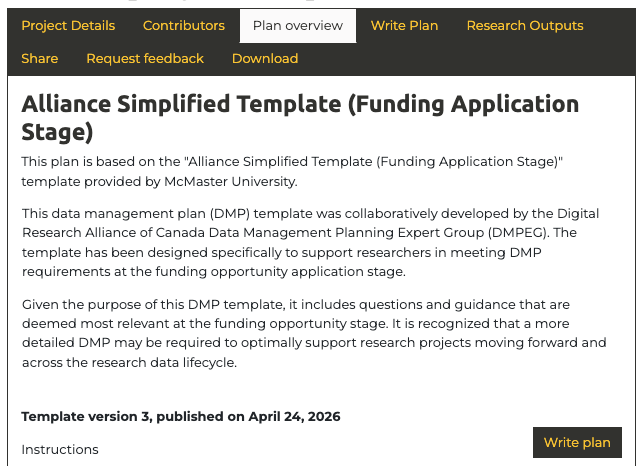
DMP Assistant is a tool supported by the Digital Research Alliance of Canada. Highlights:
- Free access to all researchers in Canada
- Add collaborators and partners
- Templates and institutional guidance on creating your plan
- Export plans as .docx, .pdf, etc.
- Send to RDM Services for review
As you go through this module, open a split screen with the DMP Assistant on one side and this module on the other, for side by side assistance as you answer the questions. 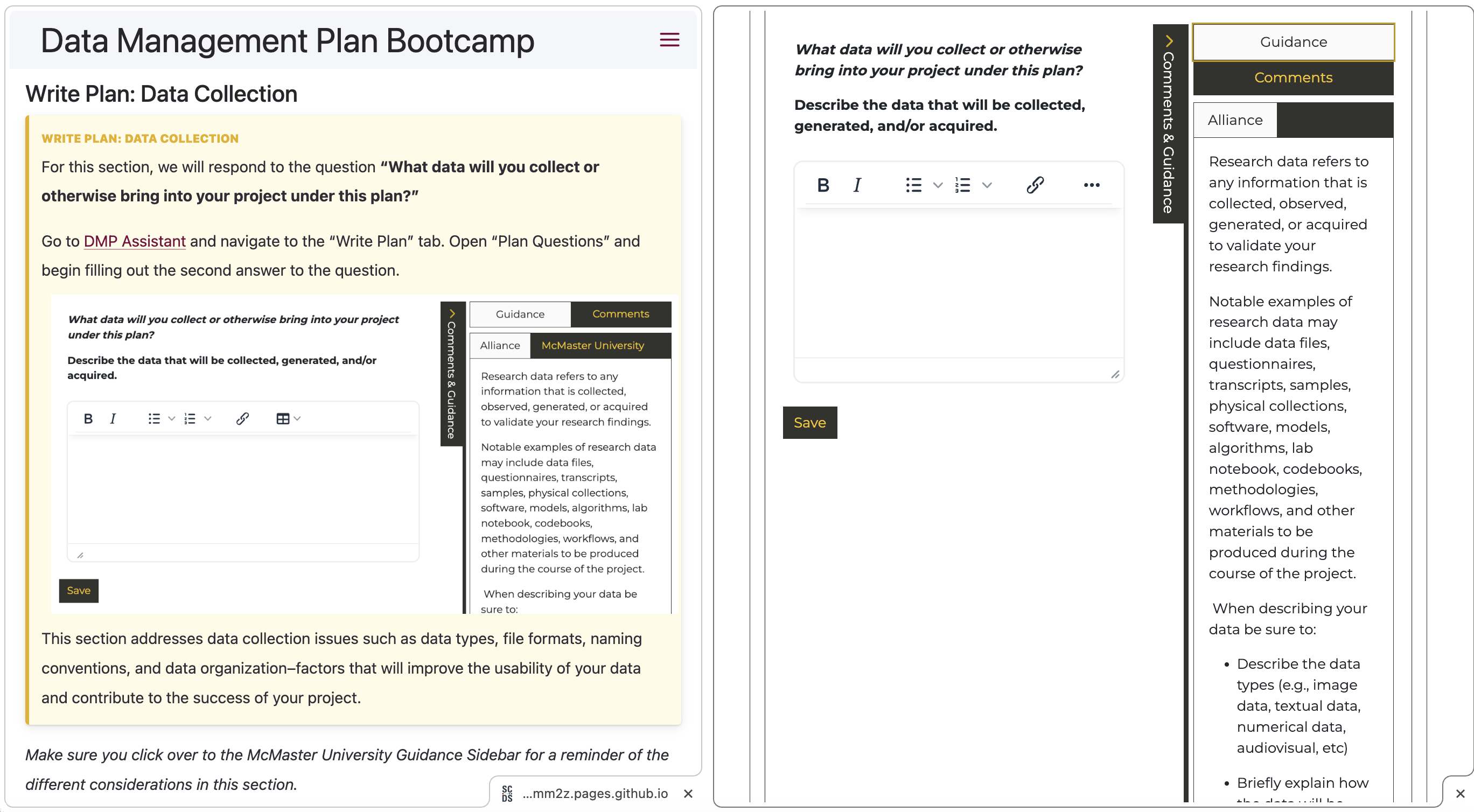
1. Create an account in DMP Assistant
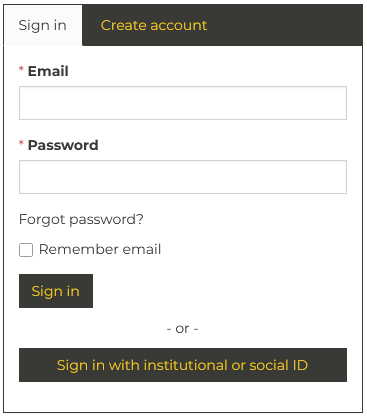
Go to https://dmp-pgd.ca/. Click “Sign In with Institutional or Social ID”.
Select “McMaster University” as the organization from the drop down to use MacID Single Sign On. Then click “Log On”.
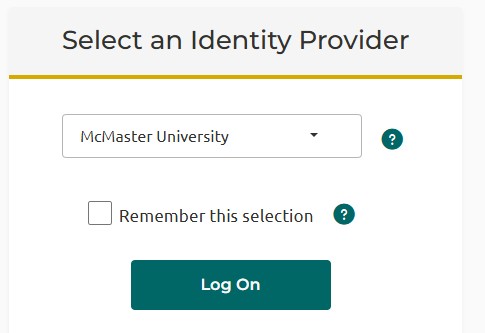
Note: Even though we use Microsoft at McMaster, don’t select Microsoft here as your identity provider.
Tip
Joining with external email: If you are not affiliated with McMaster, sign in through your institution or social ID. Click “Create Plan” and select “McMaster University” as your organization to access the McMaster DMP templates.
2. Create a plan
Once you’ve successfully logged in, go to the top of the page and select the tab “Create Plans” 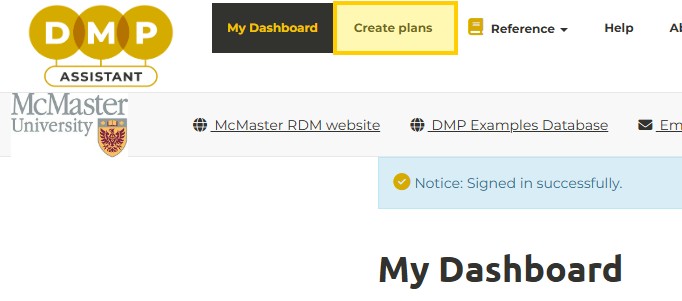
Give your plan a title in the field “What research project are you planning?” If you’re not sure what to call it, “DMP for [Project Title]” is a great start.
Indicate the primary research organization - type in ‘McMaster University’ as the Primary Research Organization and select it from the dropdown menu.
To the question “Which DMP template would you like to use?” select the first option that comes up: Alliance Simplified Template (Funding Application Stage).
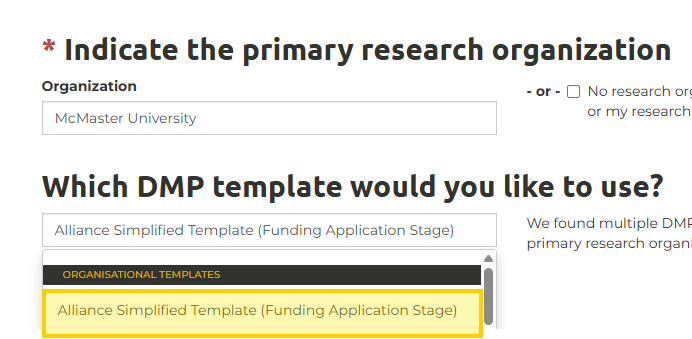
This is a great place to start creating a DMP with five basic questions to meet national requirements and McMaster-specific guidance.
TIP
McMaster has a variety of DMP templates with guidance for Family Medicine, Social Science, and software projects. Even if you’re working in these areas, it’s best to learn on a simpler plan with fewer questions. The Alliance Simplified Template has McMaster-specific guidance and is the right scope for your first DMP.
3. Fill in project details and contributors.
Now that you’ve created your plan, it’s time to fill in project details and contributors. Your project details may be vague for now, however, if you’re writing this for a grant application or you’ve received a Canada Graduate Scholarship or other award, make sure to add that to the “Funder” section of your research.
For your “Project abstract” add a 1-paragraph overview to help your reviewer (a grant reviewer, the research office, RDM services, project partners, or your supervisor) get their bearings on what your project will involve.
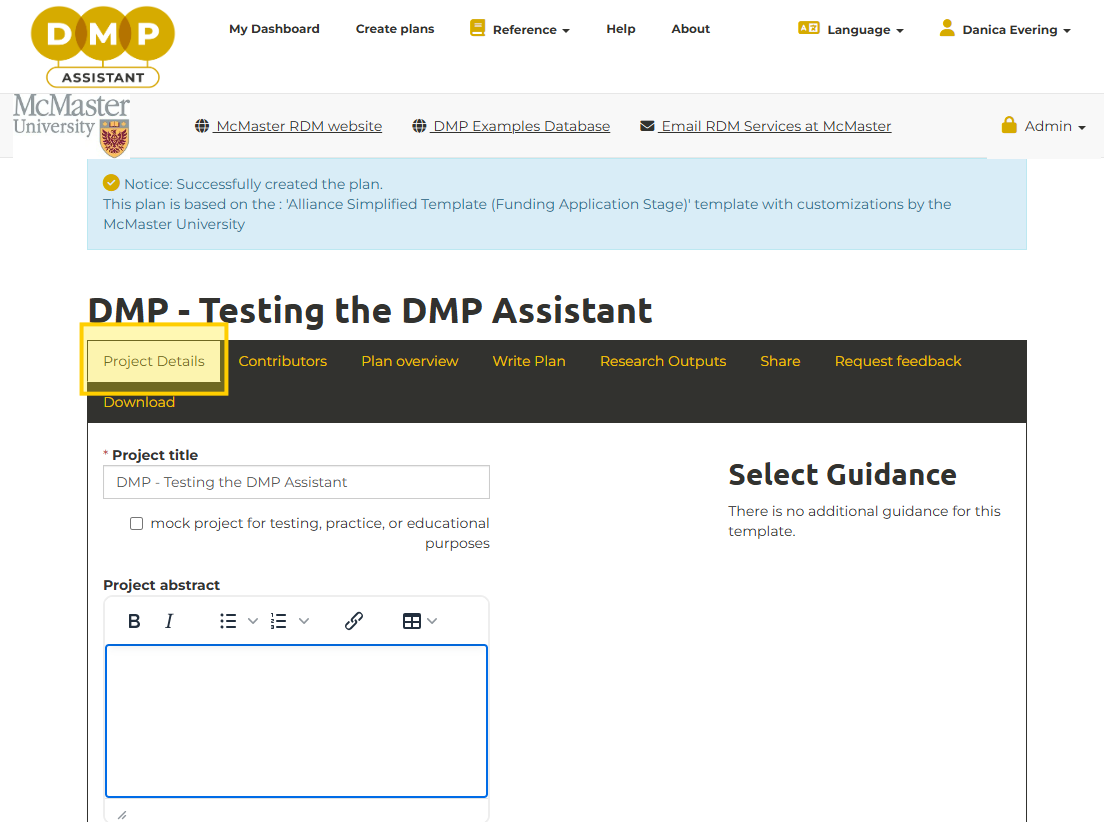
“Contributors” is the next tab on DMP Assistant. For grant applications, this will be anyone on your team who will have a role in contributing to data management. For graduate research, your contributors will be yourself and your advisor, as well as any other potential collaborators. Click “Add a contributor”. Enter the name, email, and affiliation for each contributor.
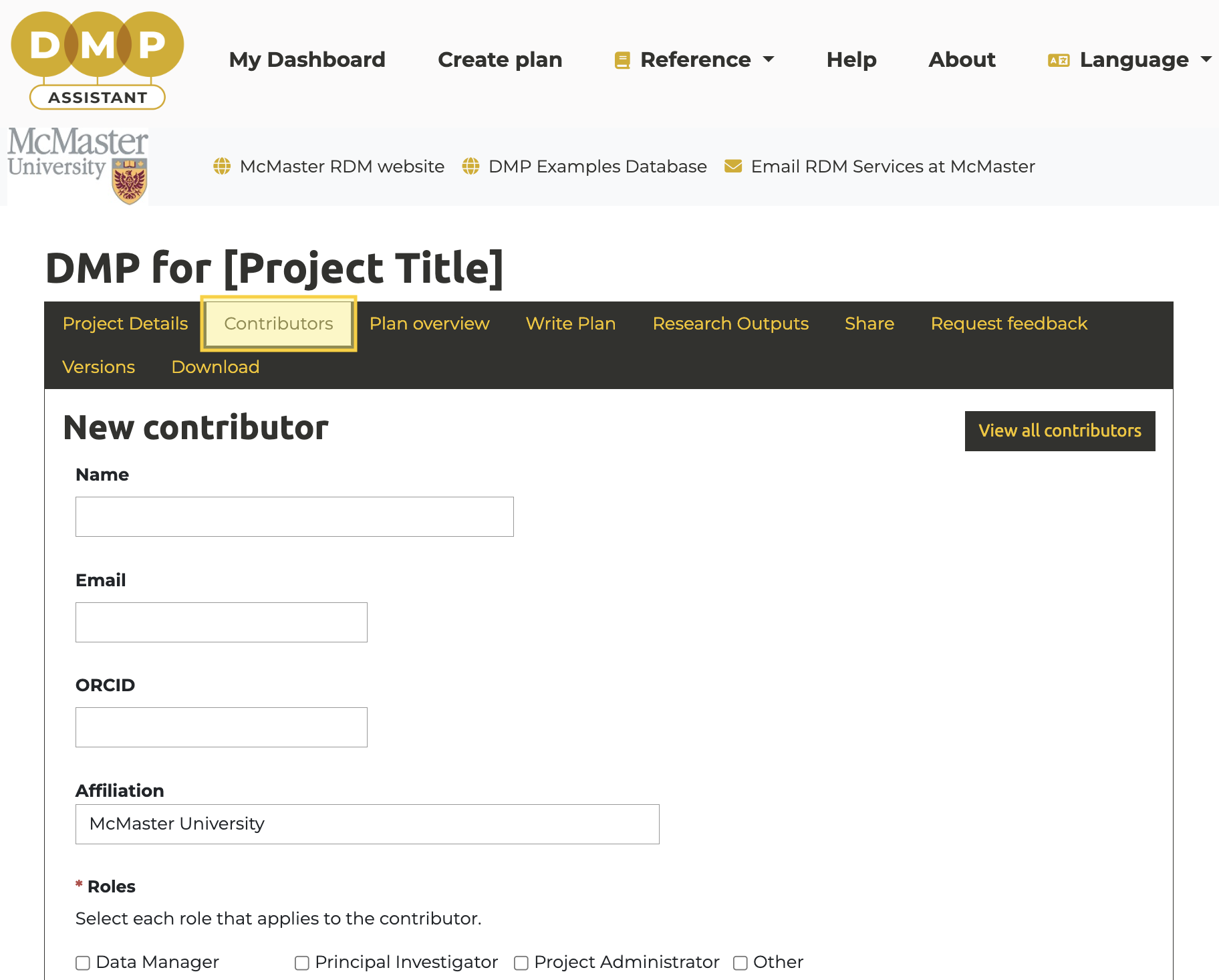
You can also add an Open Researcher and Contributor ID (ORCID) for each contributor. If you don’t have an ORCID yet, an ORCID is a unique identifier for researchers in the same way a DOI is a unique identifier for publications and datasets. Like a fingerprint, it’s a unique code that distinguishes you from other scholars. When you publish research, an ORCID helps keep you distinct from researchers with the same name. Even if you change your name (marriages, transitions) or use different variations of it (John Jacob Jingleheimer Schmidt vs. John J.J. Schmidt vs. J.J.J. Schmidt), your ORCID always stays the same.
You can set up your ORCID to collect everything you publish in multiple journals, data repositories, and more to connect your datasets, code, and publications. Register for an ORCID at https://orcid.org and then add it to your Data Management Plan. If you have an advisor, you can find their ORCID in the “Search” bar at the top of the ORCID site, and add that to your DMP as well.
Learn more about ORCIDs with our webinar“What are ORCiDs and DOIs—and Why Do I Need Them?”
4. Check out “Plan overview” and “Write Plan” - but don’t fill them out yet.
With Project Details and Contributors filled out, take a look down the road by looking at the “Plan overview” and “Write Plan” Tabs.
“Plan overview” will give you a glance at the questions you’ll be completing through the module.
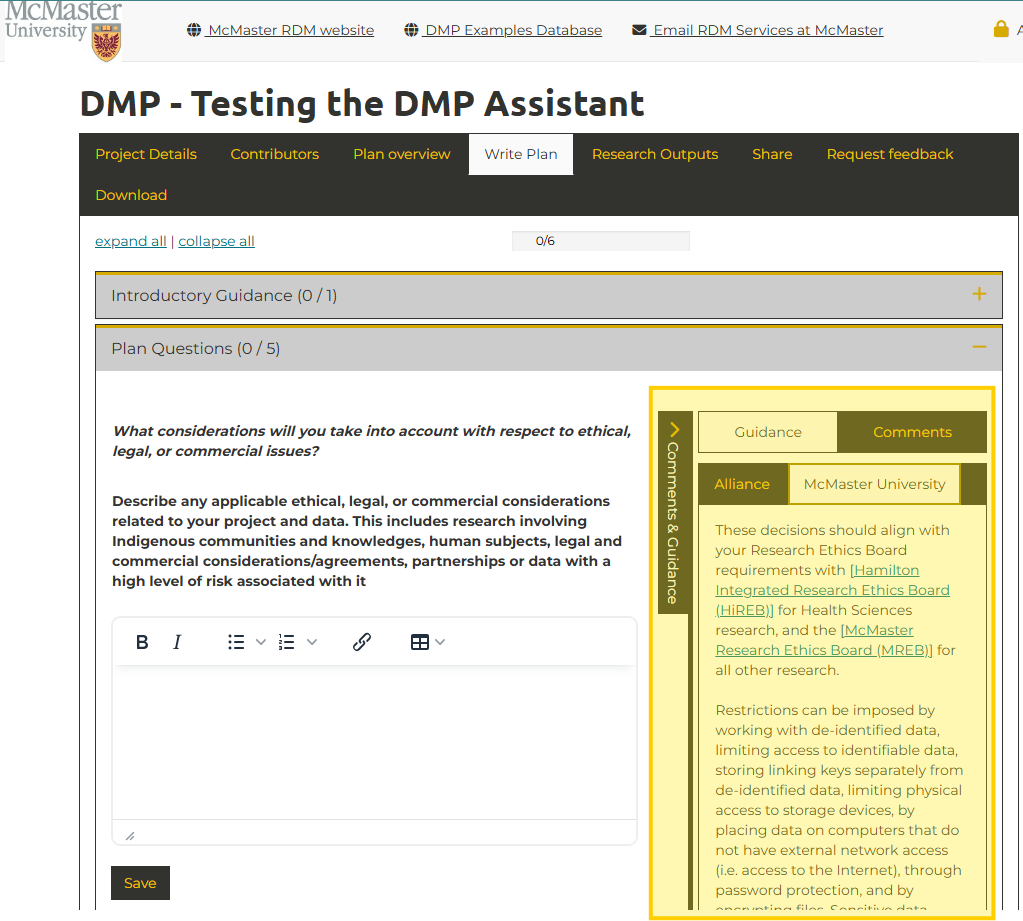
Take a look at the “Write Plan” tab now. Through the next five sections, we’ll ask you to fill in different parts in DMP Assistant. By the time you’re done the module, you’ll have a first draft of your DMP to guide your research, which you will submit to RDM Services for review. Make sure to click “Save” after completing each section, and don’t forget to click on the “Comments & Guidance” sidebar, which contains helpful guidance, services, and links specifically for McMaster researchers.
You don’t need to fill out any boxes yet! There’s information about RDM you still need to understand before you can complete each question.
Congratulations, you’ve started your DMP!